
• Agency
  • Products
    • Atomic Addons
    • Prime Accessibility
    • Atomic Slider
    • Atomic Social Kit
    • Atomic Site Manager
  • Brands
    • WP Caliph
    • E-Shikkhok
  • Company
    • About Us
    • Career
    • Contact
  • Blog
Log in
  • Agency
  • Products
    • Atomic Addons
    • Prime Accessibility
    • Atomic Slider
    • Atomic Social Kit
    • Atomic Site Manager
  • Brands
    • WP Caliph
    • E-Shikkhok
  • Company
    • About Us
    • Career
    • Contact
  • Blog

Atomic Addons

24
  • How To Use The Backdrop Filter Extension By Atomic Addons
  • How To Use The Tooltip Extension By Atomic Addons
  • How To Use Text Gradient Background Extension By Atomic Addons
  • How To Use Ripple Effects Extension By Atomic Addons
  • How To Use The Particles Extension By Atomic Addons
  • How To Use The Liquid Glass Effects Extension By Atomic Addons
  • How To Use The AdBlock Detector Extension By Atomic Addons
  • How To Use The Equal Height Extension By Atomic Addons
  • How To Use The Floating Effects Extension By Atomic Addons
  • How To Use The Transform Effects Extension By Atomic Addons
  • How To Use The Parallax Effects Extension By Atomic Addons
  • How To Use The Sticky Extension By Atomic Addons
  • How To Use The Scroll Box Extension By Atomic Addons
  • How To Use Grid Line Extension By Atomic Addons
  • How To Use The Animated Gradient Background Extension By Atomic Addons
  • How to use the Post Tiny List widget by Atomic Addons
  • How To Use Cursor Effects Extension By Atomic Addons
  • How To Use Confetti Effects Extension By Atomic Addons
  • How To Use The Reveal Effects Extension By Atomic Addons
  • How To Use Notation Extension By Atomic Addons
  • How To Use Custom CSS / Js Extension By Atomic Addons
  • How To Use Wrapper Link Extension By Atomic Addons
  • How To Use The Duplicator Feature By Atomic Addons
  • How to Install & Activate the Atomic Addons Free Plugin
View Categories
  • Home
  • Docs
  • Atomic Addons
  • How To Use The Backdrop Filter Extension By Atomic Addons

How To Use The Backdrop Filter Extension By Atomic Addons

Oyorox
Updated on August 27, 2026

3 min read

The Backdrop Filter extension in Atomic Addons allows you to apply visual effects to the area behind your Elementor elements, helping you create modern and stylish designs without custom coding. It can be used to enhance sections, containers, and widgets with effects such as blur, brightness, contrast, grayscale, and more. With adjustable filter controls and flexible styling options, you can easily create unique layouts and improve the overall visual appearance of your website. This documentation will guide you through how to use and configure the Backdrop Filter extension in Atomic Addons.

Enabling the Backdrop Filter Extension  #
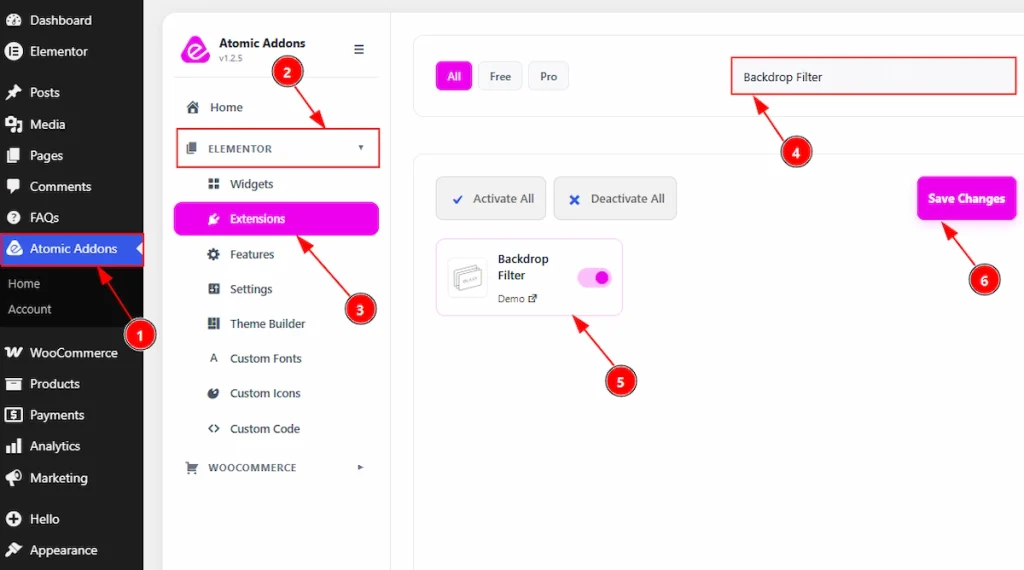
Enabling the Backdrop Filter Extension

To use the Backdrop Filter Extension from Atomic Addons, first, you have to enable the extension.

  1. Go to WordPress dashboard → Atomic Addons Plugin dashboard.
  2. Then, click on the Elementor Tab and the sub items will open.
  3. Then, Click the Extensions Tab.
  4. Search for the Backdrop Filter Extension.
  5. Enable the Backdrop Filter Extension.
  6. Hit the Save Settings Button.

Primary Setup for Backdrop Filter Extension #
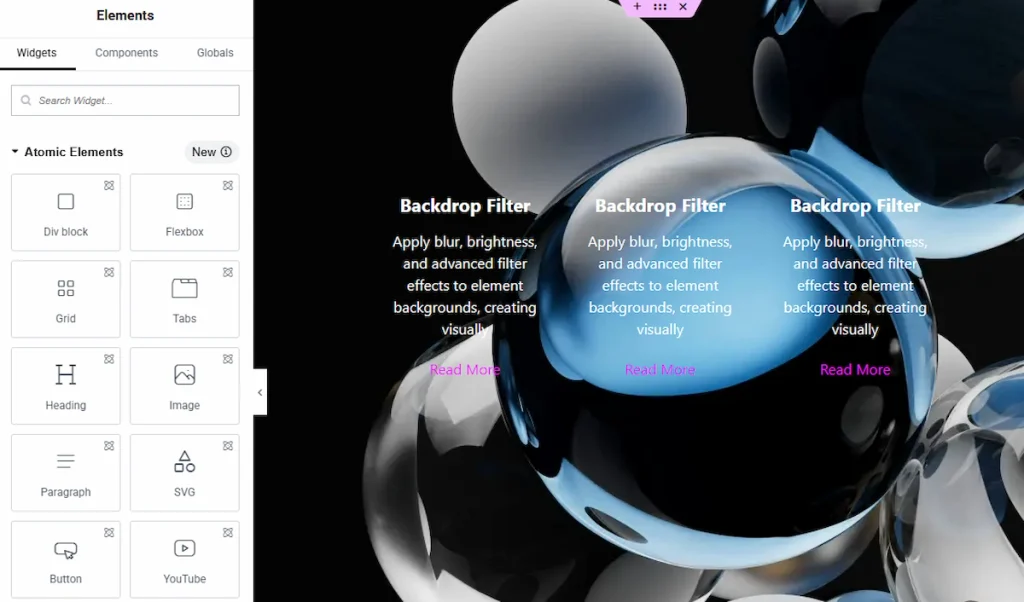
Primary Setup for Backdrop Filter Extension

Before using the Backdrop Filter extension, you first need to create or select an existing design where you want to apply the effect. This will help you better visualize and customize the transparency appearance within your layout.

Place To Find The Backdrop Filter Extension #
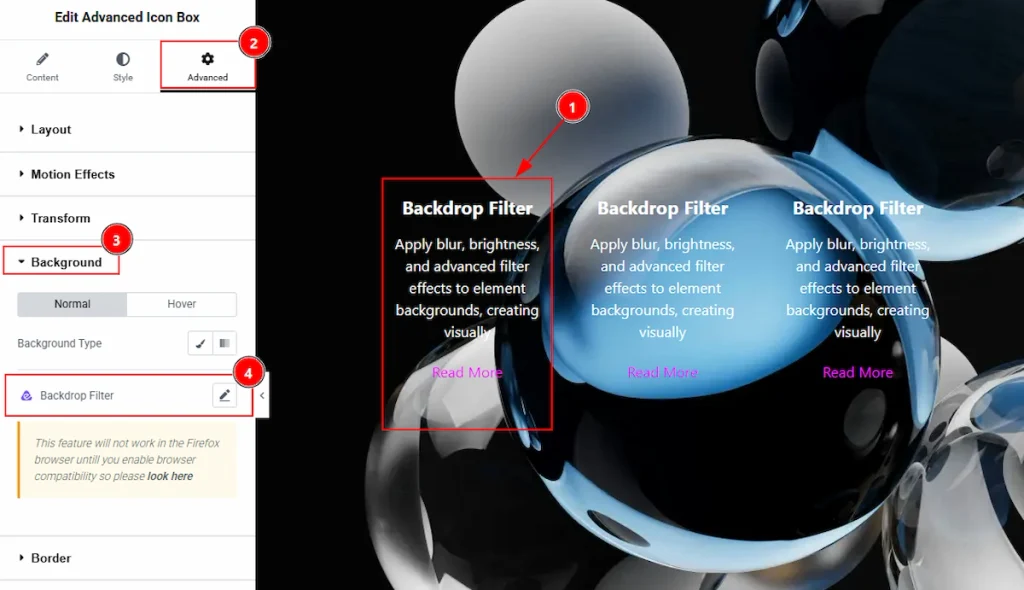
Place To Find The Backdrop Filter Extension

To find the Backdrop Filter Extension, you must need to select the element where you want to use the extension. Let’s see the steps below –

1. Click on the element which you want to configure by the Backdrop Filter extension.
2. Now move to the Advanced tab.
3. Click on the Background Tab.
4. You will find the Backdrop Filter extension here along with the Wow Elements logo.

Using the Backdrop Filter Extension #
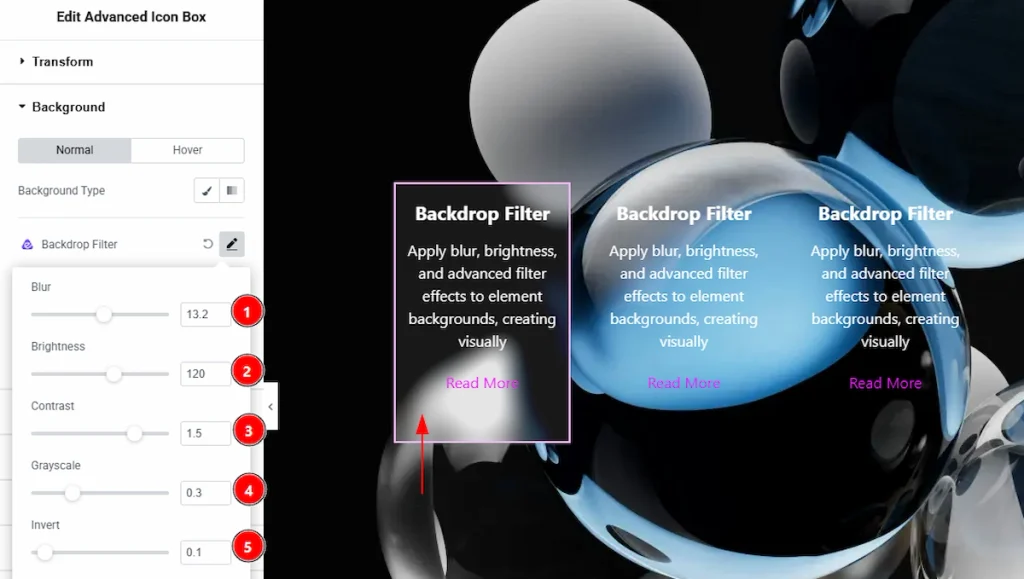
Using the Backdrop Filter Extension 01

First, select the Advanced Icon Box widget and navigate to the Advanced tab. Then, open the Background section and click on the Backdrop Filter extension to access its available settings.

Now, let’s see what we have on the Backdrop Filter extension and let’s customize each option –

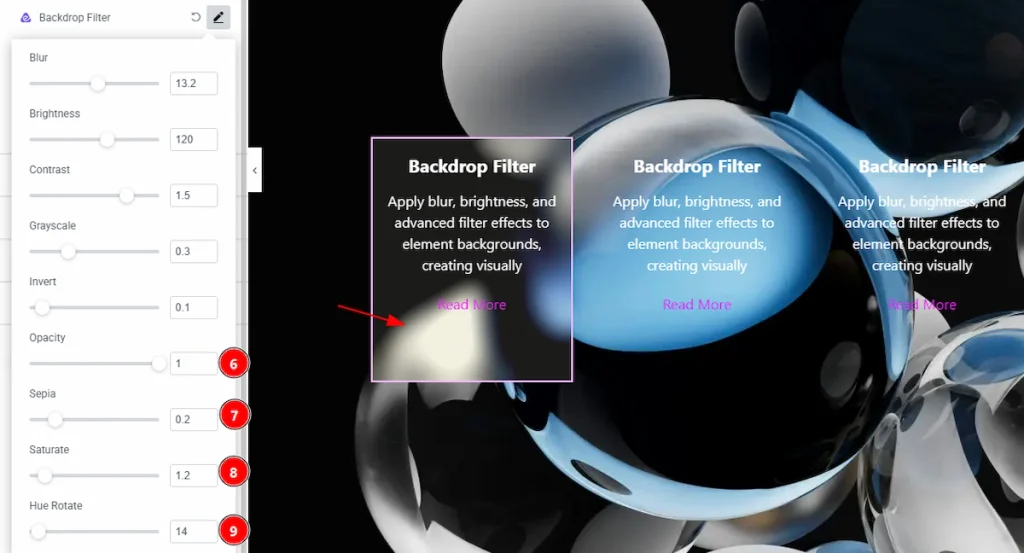
1. Blur: You can adjust the transparency of the selected element background with this option.
2. Brightness: You can adjust the brightness of the background with this option.
3. Contrast: You can control the contrast of the background to set more dark or light with this option.
4. Grayscale: You can control the black and white color of the background with this option.
5. Invert: This option allows you to reverses the background colors, producing a negative-style visual effect as the value increases.
Using the Backdrop Filter Extension 02

6. Opacity: You can control the transparency of the backdrop effect, making the background more or less visible through the element with this option.
7. Sepia: You can apply a warm brown tone to the background, creating a vintage or classic style effect.
8. Saturate: You can adjust the intensity of background colors, where higher values make colors more vibrant and lower values make them duller.
9. Hue: You can rotate shifts the background colors along the color spectrum, changing the overall color tone based on the degree value.

Preview of The Backdrop Filter Extension #
Preview of The Backdrop Filter Extension

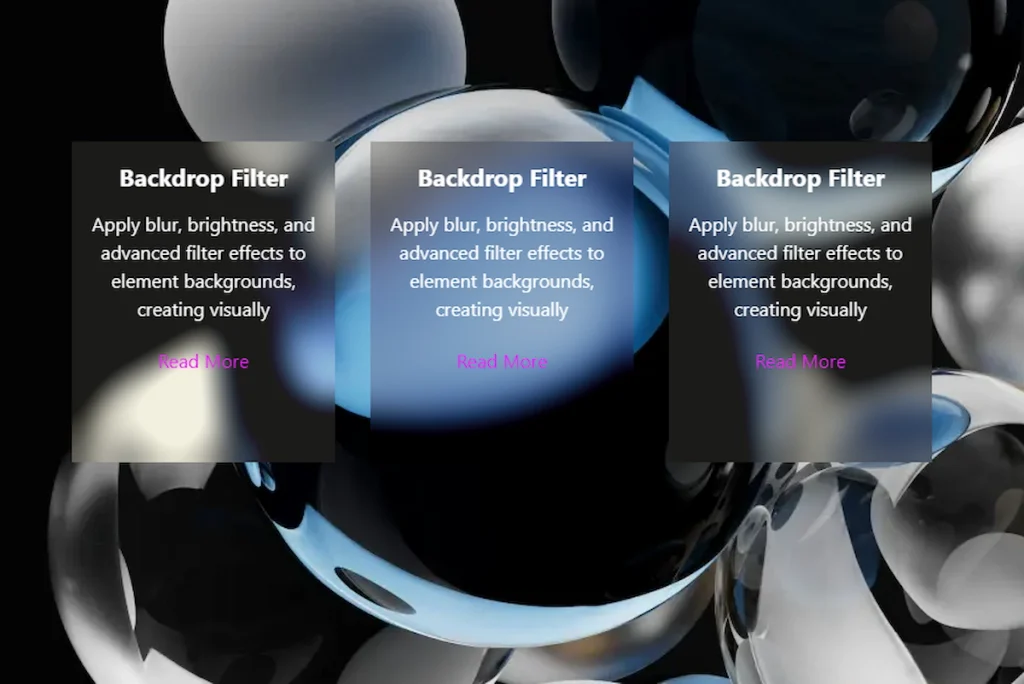
After adjusting the effects to your design, publish the page and you can see the output on the preview page.

All done, You have successfully customised the Backdrop Filter Extension on your website.

Video Tutorial #

You can also watch the video tutorial to learn more about the Backdrop Filter extension.

Thanks for being with us.

Elementor Addon, Elementor Extensions
How to Install & Activate the Atomic Addons Free PluginHow To Use The Tooltip Extension By Atomic Addons

Powered by BetterDocs

Table of Contents
  • Enabling the Backdrop Filter Extension 
  • Primary Setup for Backdrop Filter Extension
  • Place To Find The Backdrop Filter Extension
  • Using the Backdrop Filter Extension
  • Preview of The Backdrop Filter Extension
  • Video Tutorial

Share This Article :

  • Facebook
  • X
  • LinkedIn
  • Pinterest

Was it helpful ?

  • Happy
  • Normal
  • Sad

Let’s Build Something Great Together

Looking for expert WordPress, SaaS, or AI solutions? Contact us today to get started.

Oyorox delivers modern digital solutions—web development, AI automation, branding support, SEO, and scalable business systems for startups and growing businesses.

Github Facebook Linkedin X-twitter
Products
  • Atomic Addons
  • Prime Accessibility
  • Atomic Slider
  • Atomic Social Kit
  • Atomic Site Manager
Agency
Email

hello@oyorox.com