Skip to content
oyorox.com
  • Agency
  • Products
    • Atomic Addons
    • Prime Accessibility
    • Atomic Slider
    • Atomic Social Kit
    • Atomic Site Manager
  • Brands
    • WP Caliph
    • E-Shikkhok
  • Company
    • About Us
    • Career
    • Contact
  • Blog
  • Agency
  • Products
    • Atomic Addons
    • Prime Accessibility
    • Atomic Slider
    • Atomic Social Kit
    • Atomic Site Manager
  • Brands
    • WP Caliph
    • E-Shikkhok
  • Company
    • About Us
    • Career
    • Contact
  • Blog

Atomic Addons

23
  • How To Use The Tooltip Extension By Atomic Addons
  • How To Use Text Gradient Background Extension By Atomic Addons
  • How To Use Ripple Effects Extension By Atomic Addons
  • How To Use The Particles Extension By Atomic Addons
  • How To Use The Liquid Glass Effects Extension By Atomic Addons
  • How To Use The AdBlock Detector Extension By Atomic Addons
  • How To Use The Equal Height Extension By Atomic Addons
  • How To Use The Floating Effects Extension By Atomic Addons
  • How To Use The Transform Effects Extension By Atomic Addons
  • How To Use The Parallax Effects Extension By Atomic Addons
  • How To Use The Sticky Extension By Atomic Addons
  • How To Use The Scroll Box Extension By Atomic Addons
  • How To Use Grid Line Extension By Atomic Addons
  • How To Use The Animated Gradient Background Extension By Atomic Addons
  • How to use the Post Tiny List widget by Atomic Addons
  • How To Use Cursor Effects Extension By Atomic Addons
  • How To Use Confetti Effects Extension By Atomic Addons
  • How To Use The Reveal Effects Extension By Atomic Addons
  • How To Use Notation Extension By Atomic Addons
  • How To Use Custom CSS / Js Extension By Atomic Addons
  • How To Use Wrapper Link Extension By Atomic Addons
  • How To Use The Duplicator Feature By Atomic Addons
  • How to Install & Activate the Atomic Addons Free Plugin
View Categories
  • Home
  • Docs
  • Atomic Addons
  • How To Use The AdBlock Detector Extension By Atomic Addons

How To Use The AdBlock Detector Extension By Atomic Addons

Oyorox
Updated on August 24, 2026

3 min read


The AdBlock Detector extension in Atomic Addons allows you to identify visitors who have an active ad blocker enabled on their browser. It helps you display custom messages, notices, or alternative content when ad-blocking is detected, allowing you to communicate with visitors more effectively. With simple detection settings and flexible display options, you can easily manage the experience for users who block advertisements without adding custom code. This documentation will guide you through how to use and configure the AdBlock Detector extension in Atomic Addons.

Managing AdBlock Detector Settings #

Managing AdBlock Detector Settings 01

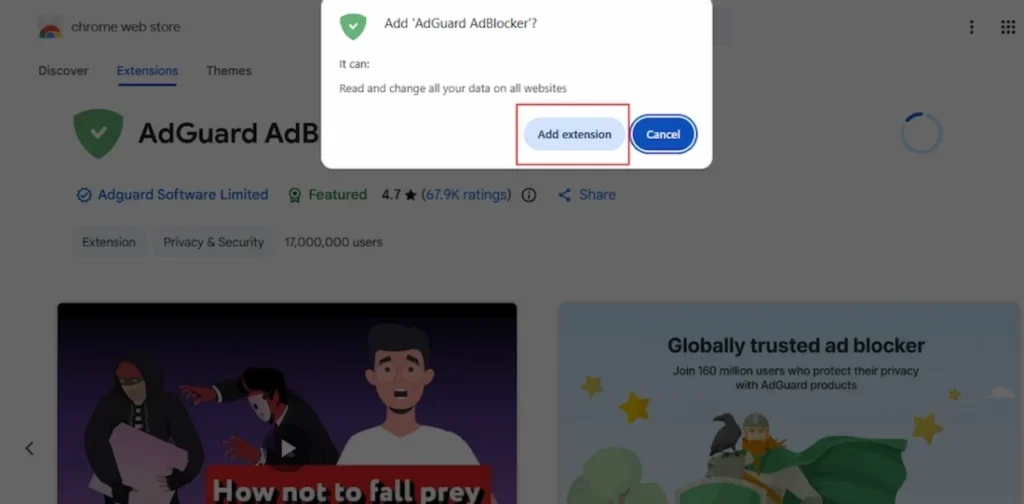
For using the AdBlock Extension you need to activate it to your browser first. If you have already added the extension to your browser then you don’t need to do anything but if you haven’t then go to your browser and then search for the AdGuard AdBlocker Extension and click on the Add to Chrome.
Managing AdBlock Detector Settings 02

After clicked on the the Add to chrome button a new popup will appear to take your confirmation. You need to click to the add extension button to continue the process of adding the extension to your browser.
Managing AdBlock Detector Settings 03

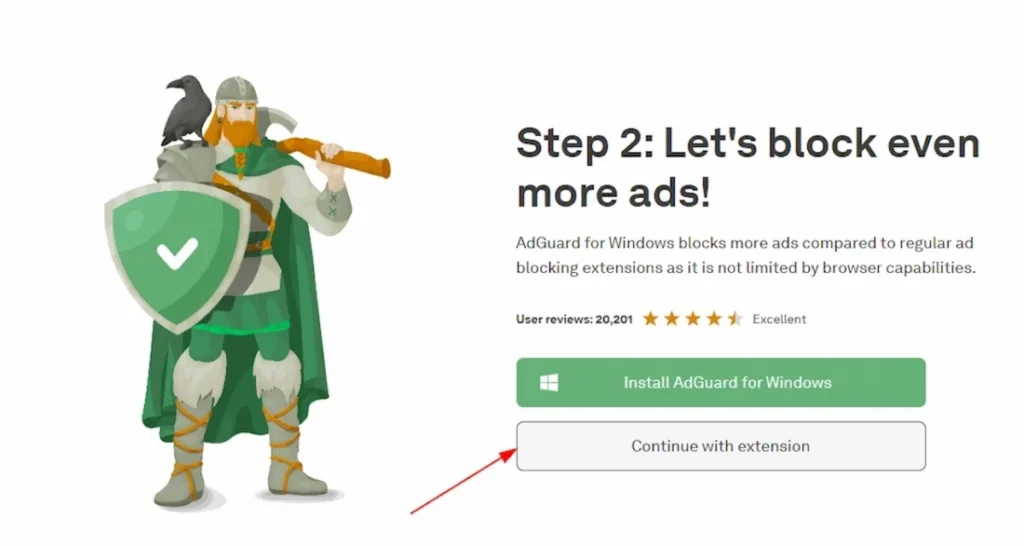
After that a new dashboard will appear to ask the permission for continue with extension of install AdGuard to your local. You can click on the continue with extension button.
Managing AdBlock Detector Settings 04

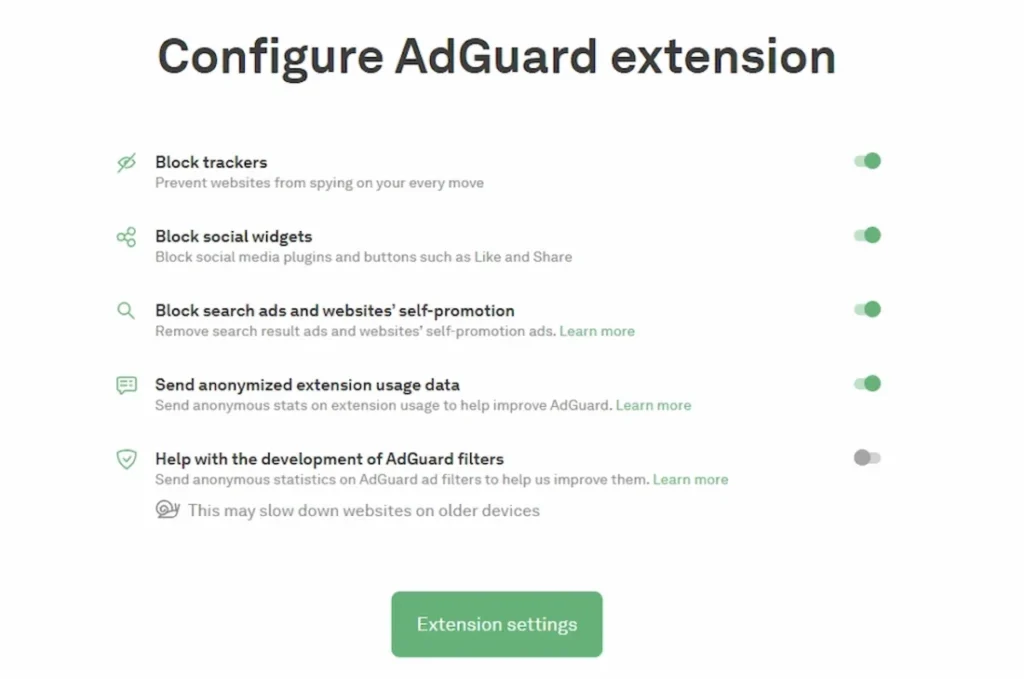
In the last stage, you will see the settings to configure AdGuard Extension, Make changes as per your preference.

Enabling the AdBlock Detector Extension #
Enabling the AdBlock Detector Extension

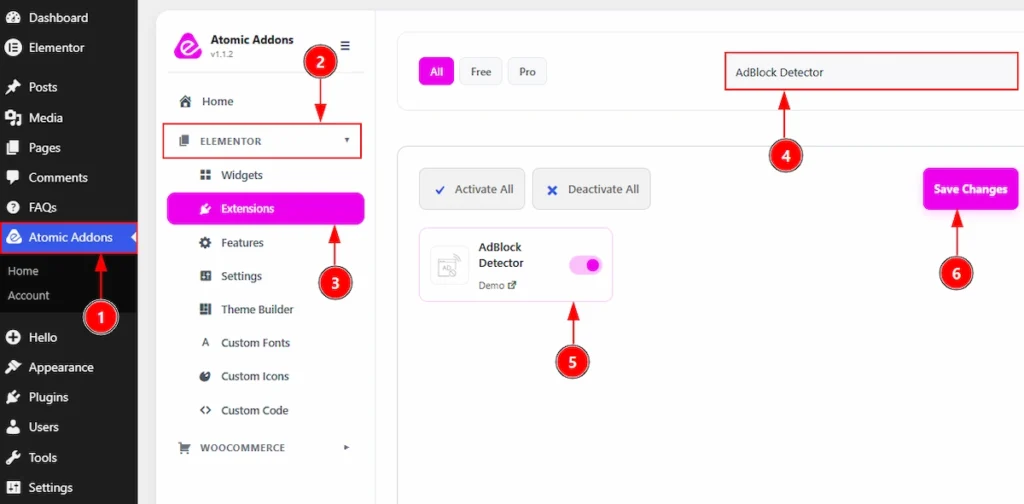
To use the AdBlock Detector Extension from Atomic Addons, first, you have to enable the extension.

  1. Go to WordPress dashboard → Atomic Addons Plugin dashboard.
  2. Then, click on the Elementor Tab and the sub items will open.
  3. Then, Click the Extensions Tab.
  4. Search for the AdBlock Detector Extension.
  5. Enable the AdBlock Detector Extension.
  6. Hit the Save Settings Button.

Place To Find The AdBlock Detector Extension #
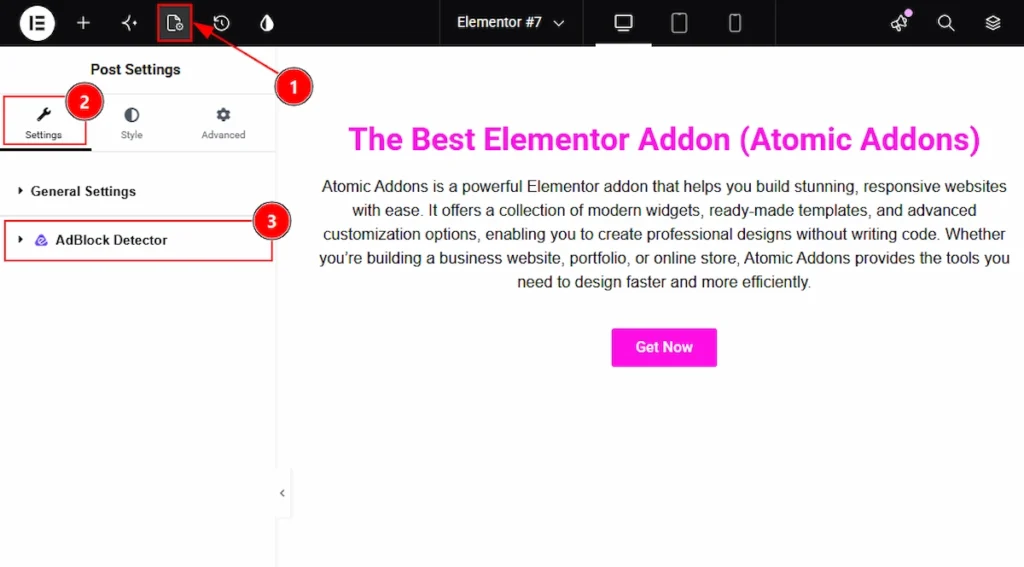
Place To Find The AdBlock Detector Extension

You need to go to the Page first where you want to add the extension. Navigate to WP Dashboard > Pages > Select the Page you want > Edit Page with Elementor. After the page opens, then follow the below steps –

1. Click on the Page Settings icon on Elementor Editor Page.
2. Now click on the settings tab.
3. Here, below the General Settings, you will find the AdBlock Detector Extension tab.

Using the AdBlock Detector Extension #
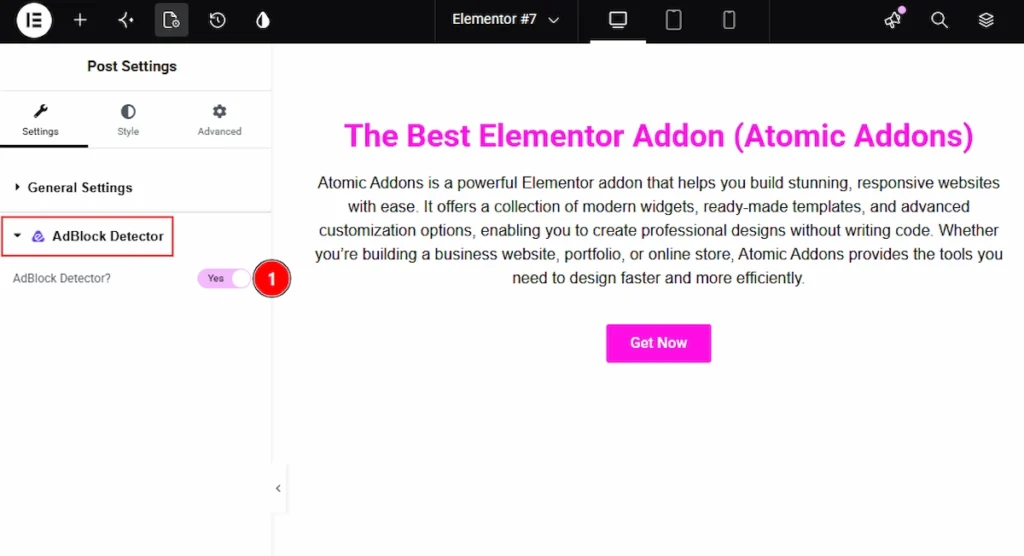
Using the AdBlock Detector Extension

This is a very simple task. If you have followed the upper steps then you don’t need to do anything else. Just open the AdBlock Detector tab and –

1. AdBlock Detector? : Enable the switcher to add the extension to the page.

Final Preview of The AdBlock Detector Extension #
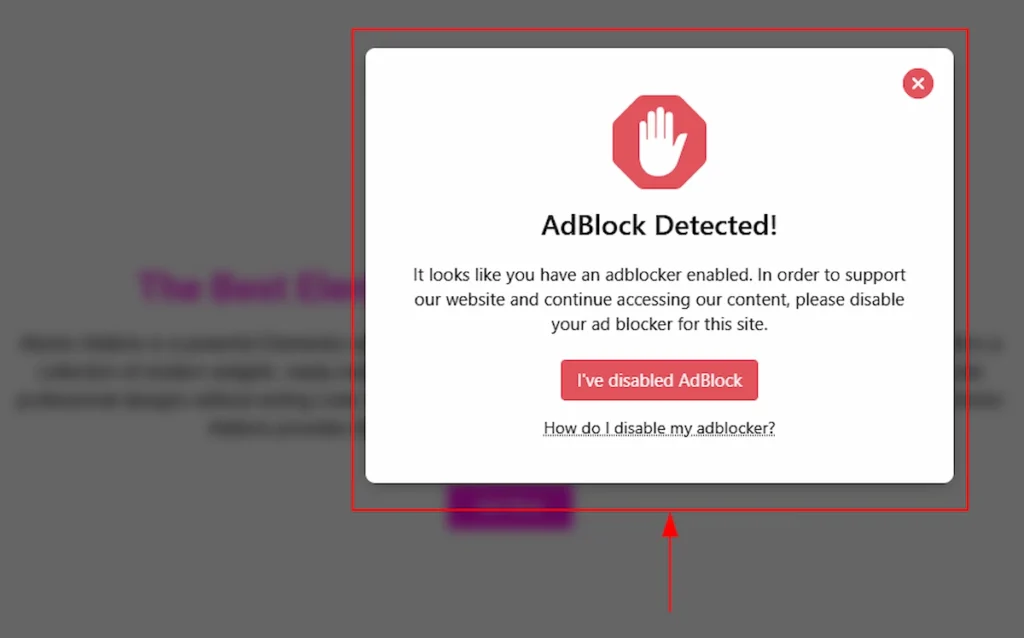
Final Preview of The AdBlock Detector Extension

After enable the extension, publish the page and preview it. When the page will load, a popup will appear to inform you to disable the extension in browser. Disable the extension and then you can access to the page.

All done, You have successfully customised the AdBlock Detector Extension on your website.

Video Tutorial #

You can also watch the video tutorial to learn more about the AdBlock Detector extension.

Thanks for being with us.

Elementor Addon, Elementor Extensions
How To Use The Liquid Glass Effects Extension By Atomic AddonsHow To Use The Equal Height Extension By Atomic Addons

Powered by BetterDocs

Table of Contents
  • Managing AdBlock Detector Settings
  • Enabling the AdBlock Detector Extension
  • Place To Find The AdBlock Detector Extension
  • Using the AdBlock Detector Extension
  • Final Preview of The AdBlock Detector Extension
  • Video Tutorial

Share This Article :

  • Facebook
  • X
  • LinkedIn
  • Pinterest

Was it helpful ?

  • Happy
  • Normal
  • Sad

All rights reserved