
The Reveal Effects extension in Atomic Elements allows you to create engaging entrance and reveal animations for your Elementor content. It helps enhance user experience by gradually displaying sections, containers, images, text, and other elements with smooth visual effects as visitors interact with your page. With flexible animation settings and easy customization options, you can add a modern and dynamic touch to your website without writing any code. This documentation will guide you through how to use and customize the Reveal Effects extension in Atomic Elements.
Enable the Reveal Effects Extension #
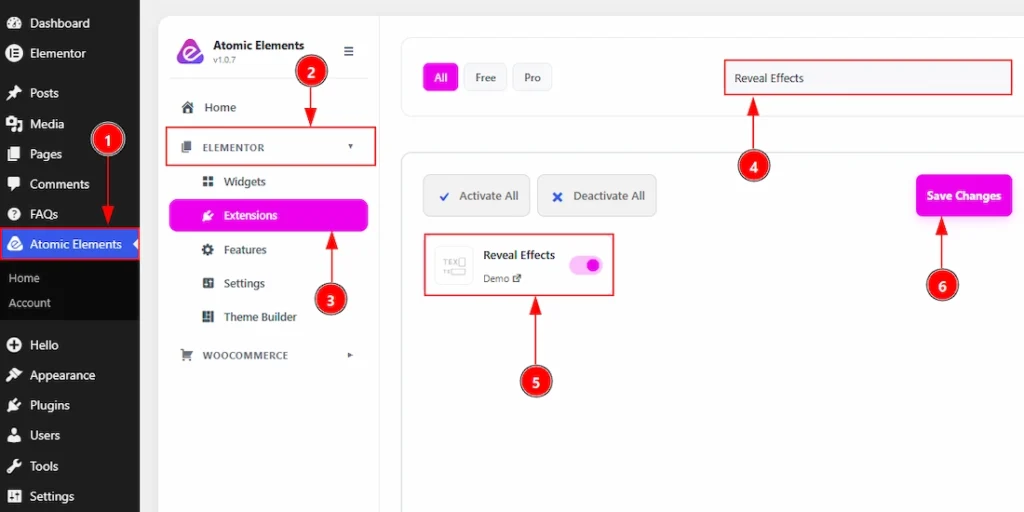
To use the Reveal Effects Extension from Atomic Elements, first, you have to enable the extension.
- Go to WordPress dashboard → Atomic Elements Plugin dashboard.
- Then, click on the Elementor Tab and the sub items will open.
- Then, Click the Extensions Tab.
- Search for the Reveal Effects Extension.
- Enable the Reveal Effects Extension.
- Hit the Save Settings Button.
Place to Find the Reveal Effects Extension #
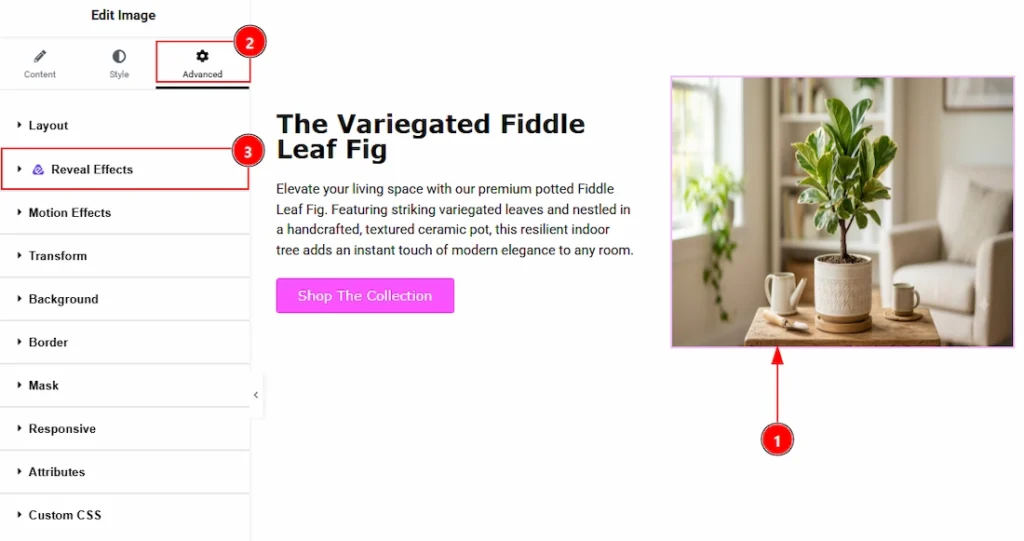
To find the Reveal Effects Extension, you must need to select the element where you want to use the extension. Let’s see the steps below –
1. Click to any elements which you want to configure by the Reveal Effects extension.
2. Now move to the Advanced tab.
3. You will find the Reveal Effects extension here along with the Wow Elements logo.
Customising the Reveal Effects Extension #
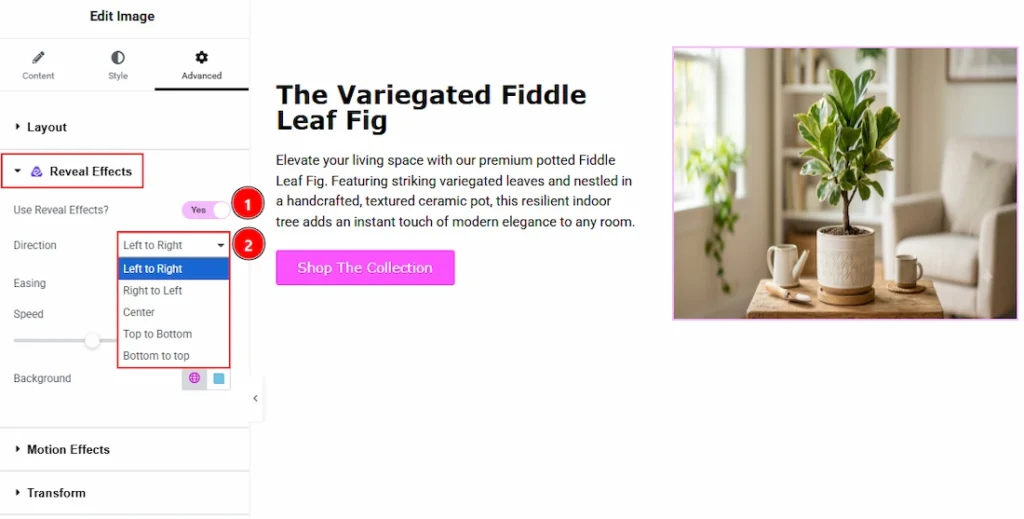
1. Use Reveal Effects: Enable the switcher to make the extension active and show the customisation option of the reveal effects.
2. Direction: You can set the direction of reveal effect to unfold the selected elements with this option. The available directions are –
- Left to Right – This option allows you to set the reveal effect direction move to left to right.
- Right to Left – This option allows you to set the reveal effect direction move to right to left.
- Center – This option allows you to set the reveal effect direction move from the center.
- Top to Bottom – This option allows you to set the reveal effect direction move to top to bottom.
- Bottom to Top – This option allows you to set the reveal effect direction move to bottom to top.
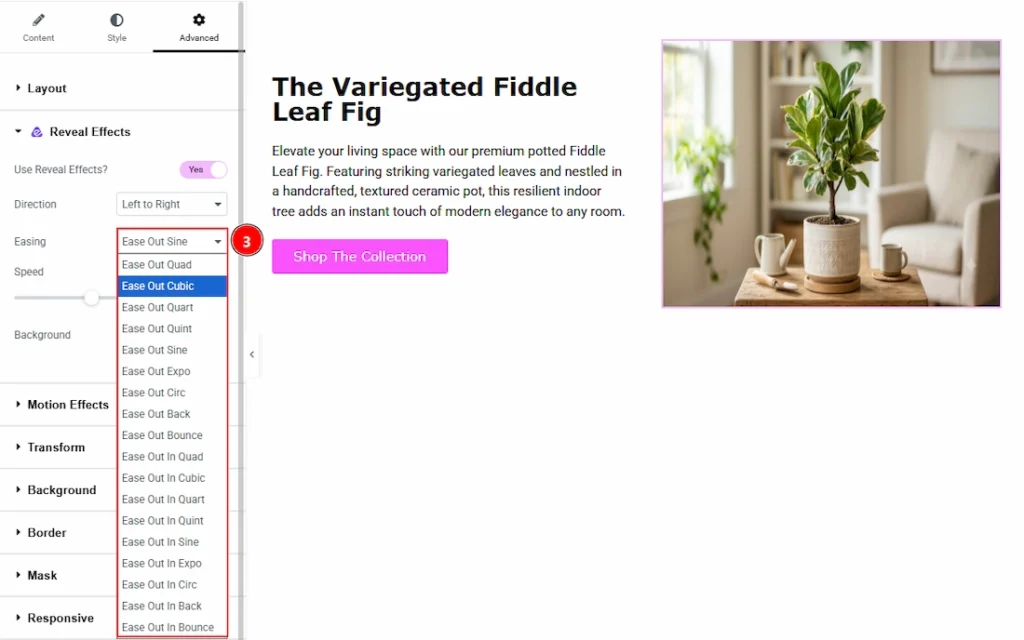
3. Easing: The Easing option controls the motion style of the reveal animation — specifically how the animation starts, moves, and ends. Each easing type creates a different animation feel for smoother and more dynamic interactions. Let’s have a look what we have here –
- Ease Out Quad – Starts quickly and slows down smoothly toward the end.
- Ease Out Cubic – Similar to Quad but with a smoother and more natural slowdown effect.
- Ease Out Quart – Creates a stronger deceleration effect for a more dramatic ending motion.
- Ease Out Quint – Provides an even smoother and softer stop with a more pronounced easing effect.
- Ease Out Sine – Delivers a gentle and natural-looking animation using a sine wave motion.
- Ease Out Expo – Starts very fast and slows down sharply at the end for a powerful reveal effect.
- Ease Out Circ – Creates a circular-style motion with a very smooth and realistic finish.
- Ease Out Back – Slightly overshoots the final position before settling back, creating a stylish bounce-back effect.
- Ease Out Bounce – Adds a bouncing motion at the end of the animation, making the reveal feel playful and dynamic.
- Ease In Out Quad – Starts slowly, speeds up in the middle, and slows down smoothly at the end.
- Ease In Out Cubic – Creates a balanced and fluid acceleration and deceleration effect.
- Ease In Out Quart – Adds a more dramatic smooth transition between start and finish.
- Ease In Out Quint – Produces a very polished and dynamic motion throughout the animation.
- Ease In Out Sine – Uses smooth sine-wave motion for a highly natural animation flow.
- Ease In Out Expo – Combines rapid acceleration and deceleration for a powerful effect.
- Ease In Out Circ – Creates a rounded and realistic motion transition from start to finish.
- Ease In Out Back – Adds slight overshoot effects at both the beginning and end of the animation.
- Ease In Out Bounce – Combines bouncing effects at both the start and end for energetic motion.
You can choose any easing option that meet your needs.
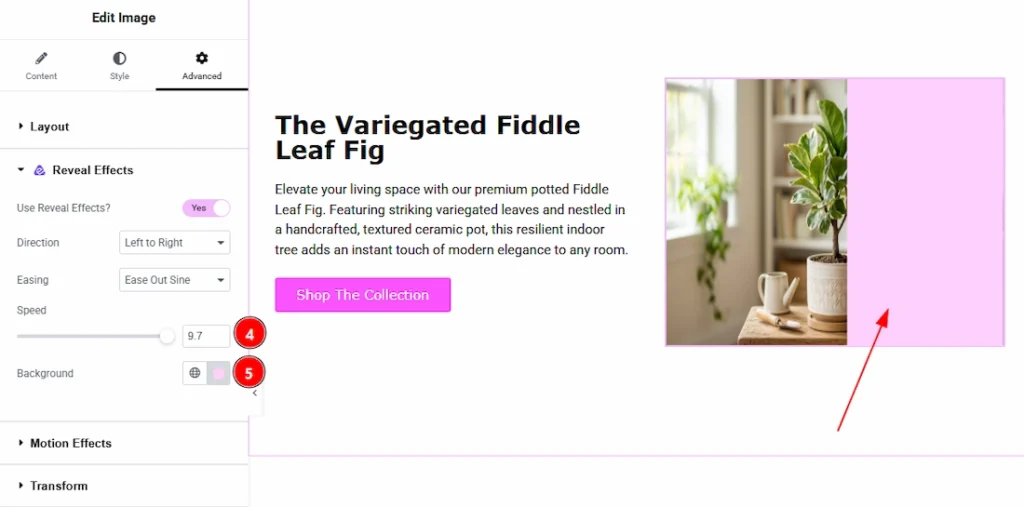
4. Speed: You can control the easing speed of the reveal effects with this option.
5. Background: You can make changes to the background color that will show when revealing the element with this option.
All done, You have successfully customised the Reveal Effects Extension on your website element.
Video Tutorial #
You can also watch the video tutorial to learn more about the Reveal Effects extension.
Thanks for being with us.