
• Agency
  • Products
    • Atomic Addons
    • Prime Accessibility
    • Atomic Slider
    • Atomic Social Kit
    • Atomic Site Manager
  • Brands
    • WP Caliph
    • E-Shikkhok
  • Company
    • About Us
    • Career
    • Contact
  • Blog
Log in
  • Agency
  • Products
    • Atomic Addons
    • Prime Accessibility
    • Atomic Slider
    • Atomic Social Kit
    • Atomic Site Manager
  • Brands
    • WP Caliph
    • E-Shikkhok
  • Company
    • About Us
    • Career
    • Contact
  • Blog

Atomic Addons

12
  • How To Use The Scroll Box Extension By Atomic Addons
  • How To Use Grid Line Extension By Atomic Addons
  • How To Use The Animated Gradient Background Extension By Atomic Addons
  • How to use the Post Tiny List widget by Atomic Addons
  • How To Use Cursor Effects Extension By Atomic Addons
  • How To Use Confetti Effects Extension By Atomic Addons
  • How To Use The Reveal Effects Extension By Atomic Addons
  • How To Use Notation Extension By Atomic Addons
  • How To Use Custom CSS / Js Extension By Atomic Addons
  • How To Use Wrapper Link Extension By Atomic Addons
  • How To Use The Duplicator Feature By Atomic Addons
  • How to Install & Activate the Atomic Addons Free Plugin
View Categories
  • Home
  • Docs
  • Atomic Addons
  • How To Use Custom CSS / Js Extension By Atomic Addons

How To Use Custom CSS / Js Extension By Atomic Addons

1 min read

The Custom CSS / JS extension in Atomic Elements allows you to add custom CSS and JavaScript code directly to your Elementor sections, containers, and widgets without editing theme files. It provides greater control over your website’s appearance and functionality, enabling you to apply custom styling, animations, interactive effects, and advanced scripts to specific elements. With an intuitive setup and flexible customization options, you can easily enhance your website and create unique user experiences tailored to your design requirements. This documentation will guide you through how to use and customize the Custom CSS / JS extension in Atomic Elements.

Enabling the Custom CSS / Js Extension #
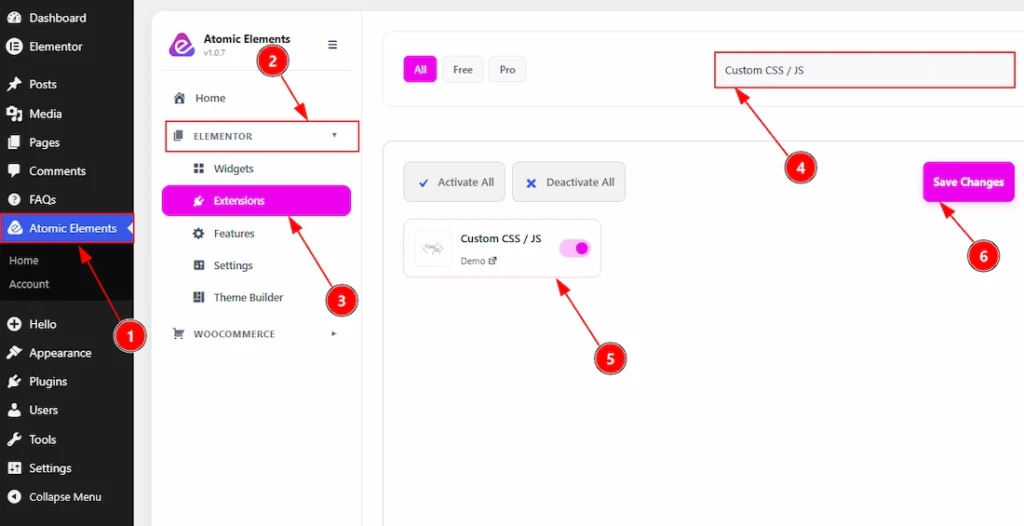
How To Use Custom CSS / Js Extension By Atomic Elements - Enabling the Custom CSS / Js Extension

To use the Custom CSS / Js Extension from Atomic Elements, first, you have to enable the extension.

  1. Go to WordPress dashboard → Atomic Elements Plugin dashboard.
  2. Then, click on the Elementor Tab and the sub items will open.
  3. Then, Click the Extensions Tab.
  4. Search for the Custom CSS / Js Extension.
  5. Enable the Custom CSS / Js Extension.
  6. Hit the Save Settings Button.

Place to Find the Custom CSS / Js Extension #
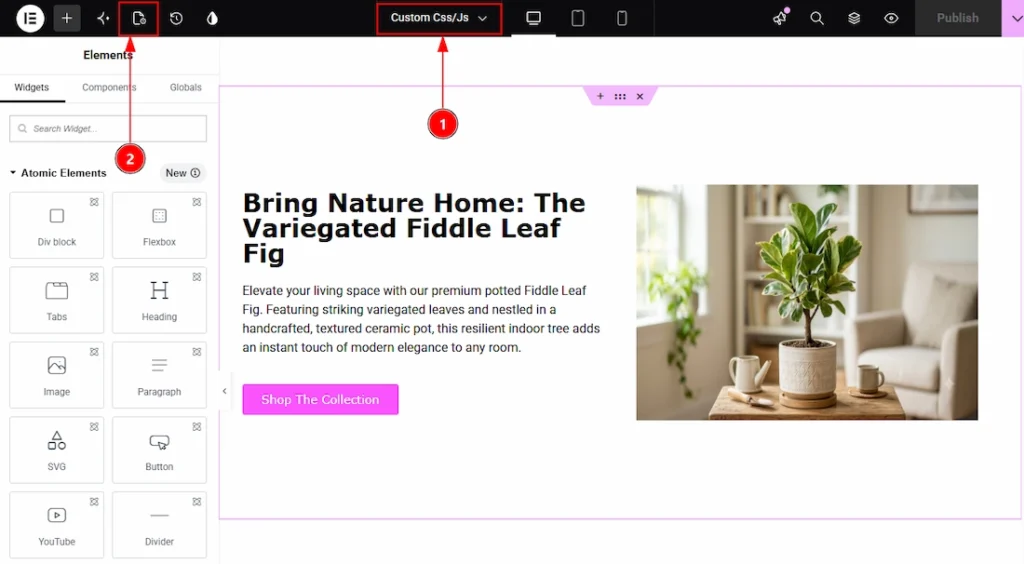
How To Use Custom CSS / Js Extension By Atomic Elements - Place to Find the Custom CSS / Js Extension 01

1. To find the extension, you must need to open a page with Elementor Editor.
2. After that, on the top left you will find the page settings option. Click on that option to open the page settings.
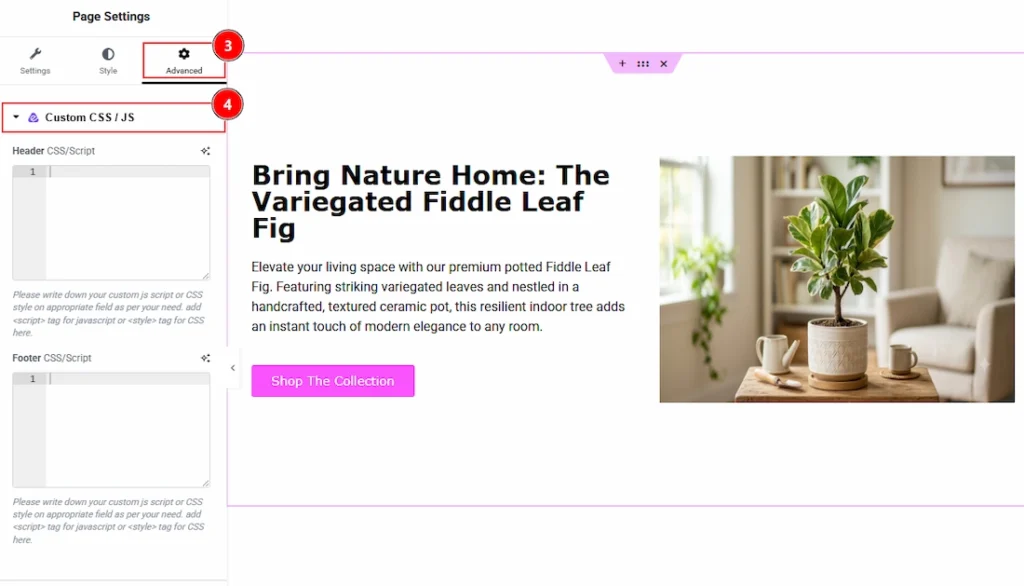
How To Use Custom CSS / Js Extension By Atomic Elements - Place to Find the Custom CSS / Js Extension 02

3. After the page settings open, then click on the Advanced Tab of the Page settings.
4. Now, in this field you will find the Custom CSS / Js extension section.

Configuring the Custom CSS / Js Extension #
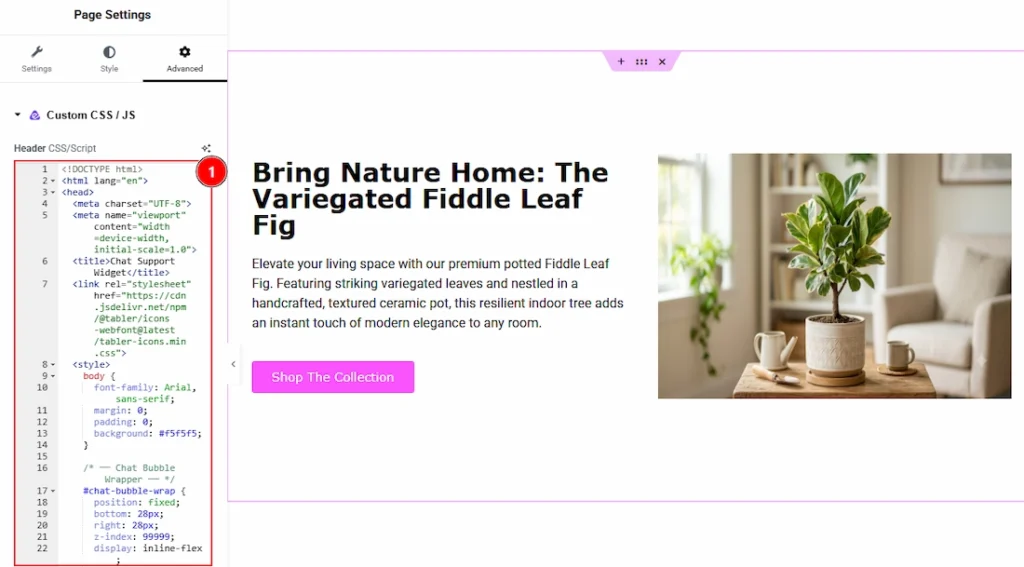
How To Use Custom CSS / Js Extension By Atomic Elements - Configuring the Custom CSS / Js Extension 01

1. In this field you can add custom CSS and JavaScript code directly to your Elementor elements without modifying theme files. It helps you extend design and functionality by applying custom styles, animations, interactions, and scripts to specific sections, containers, or widgets. With flexible code integration options and easy configuration, you can create unique and advanced customizations tailored to your website’s needs. Here we have added to code to create a support logo and text to this page. Now, let’s publish the page and see what we have got –

How To Use Custom CSS / Js Extension By Atomic Elements - Configuring the Custom CSS / Js Extension 02

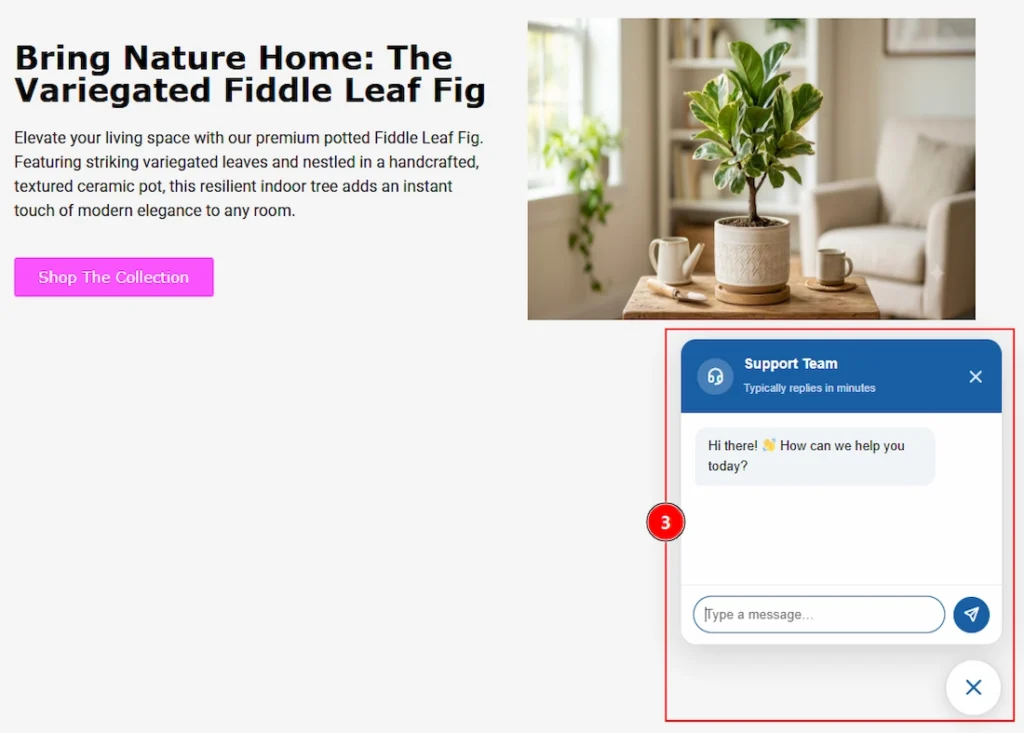
While previewing the page after published we can see that we have received a visual of chat support along with text, as per our provided code. In this way we can change and modify anything so easily.
How To Use Custom CSS / Js Extension By Atomic Elements - Configuring the Custom CSS / Js Extension 03

Click on the icon and you will get to see the proper chat box that you just created using the custom css / js extention.

All done, You have successfully customised the Custom CSS / Js Extension on your website.

Video Assist #

You can also watch the tutorial video about the Custom CSS / Js Extension. Please visit the demo page for examples.

Thanks for staying with us.

Updated on August 22, 2026
Elementor Addon Elementor Extensions

What are your Feelings

  • Happy
  • Normal
  • Sad

Share This Article :

  • Facebook
  • X
  • LinkedIn
  • Pinterest
How To Use Notation Extension By Atomic AddonsHow To Use Wrapper Link Extension By Atomic Addons

Leave a Reply Cancel reply

Your email address will not be published. Required fields are marked *

Table of Contents
  • Enabling the Custom CSS / Js Extension
  • Place to Find the Custom CSS / Js Extension
  • Configuring the Custom CSS / Js Extension
  • Video Assist

Let’s Build Something Great Together

Looking for expert WordPress, SaaS, or AI solutions? Contact us today to get started.

Oyorox delivers modern digital solutions—web development, AI automation, branding support, SEO, and scalable business systems for startups and growing businesses.

Github Facebook Linkedin X-twitter
Products
  • Atomic Addons
  • Prime Accessibility
  • Atomic Slider
  • Atomic Social Kit
  • Atomic Site Manager
Agency
Email

hello@oyorox.com